Curriculum
Lua for Roblox Studio
Hour 1
0/3


Hour 2
0/3
Hour 3
0/3
Hour 4
0/3
Hour 5
0/3
Hour 6
0/3
Hour 7
0/3
Hour 8
0/3
Hour 9
0/3
Hour 10
0/3
Hour 11
0/3
Hour 12
0/3
Hour 13
0/4
Hour 14
0/3
Hour 15
0/4
Hour 16
0/3
Hour 17
0/0
Coding Your First Project
This first hour covers how to set up Roblox Studio, make your first script, and test your code.
Installing Roblox Studio
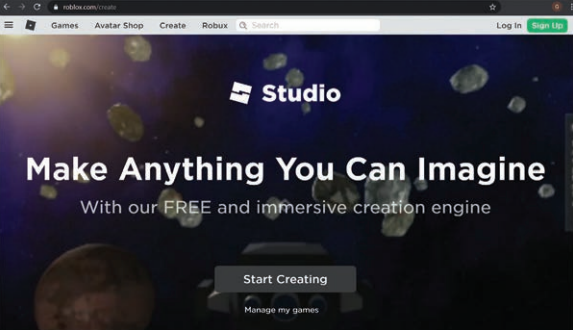
Before you get started, make sure you have Roblox Studio installed. It runs on Windows and MacOS, and you can grab a copy at https://roblox.com/create. Click Start Creating to begin. You’ll need to create a Roblox account if you don’t yet have one.
Let’s Take a Tour
Roblox Studio provides everything you need to create games. It includes assets such as character models, items to put in the world, graphics for the sky, soundtracks, and more.
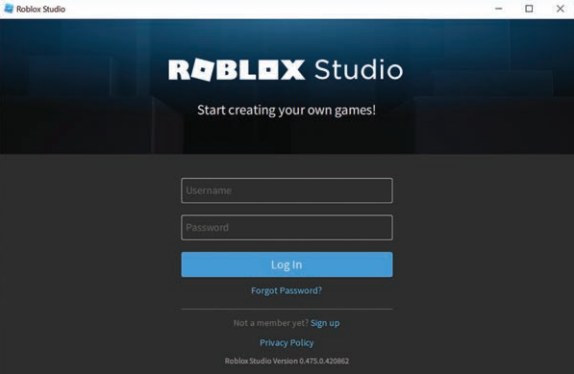
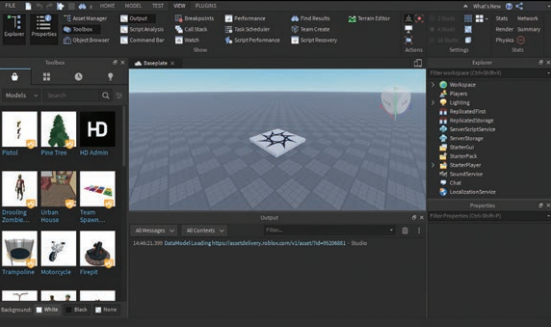
Go ahead and launch Roblox Studio to see the window shown in Figure 1.2. Enter the login information for the account you created when you signed up on the Roblox website and click Log In.
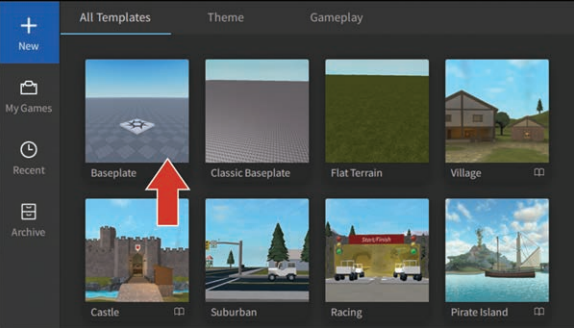
When you first open up Studio, you see templates. These are starting places you can use for your experiences. The simplest starting point for any project is the Baseplate template. Click on the Baseplate template.
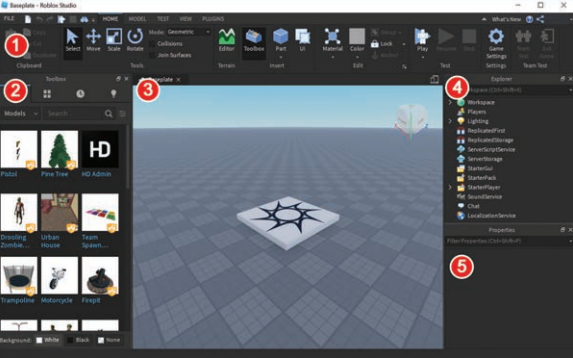
Let’s start with a quick overview of the main parts of the screen, and then move straight into your first line of code:
1. The offerings in the Toolbar ribbon change according to the menu tab you’ve selected.
2. The Toolbox contains existing assets to add to your game. You can also create your own assets through a 3D modeling program such as Blender3D, and Studio includes a set of mesh-editing tools to customize the 3D models already available.
3. The 3D Editor provides a view of the world. Hold your right mouse button to turn the view, and use the WASD keys to reposition the camera.
4. The Explorer window provides convenient access to every key asset or system in the game. You use this to insert objects into your experience.
5. Use the Properties window to make changes to objects in the game, such as color, scale, value, and attributes. Select an object in the Explorer to see available properties.
There are numerous ways to configure this main screen, including hiding different sections, rearranging their positioning to be more convenient, and changing their size.
Roblox Studio is a very complete game development environment that goes well beyond Lua.
Opening the Output Window
TheOutput window in Studio isn’t open by default, but you need this before you continue so that you can see errors and messages that are related to your code.
Use the following steps to display the Output window:
1. Click the View tab. If you ever close a window and need to reopen it, you can find it here.

2. Click Output to display the Output window at the bottom of your screen.

Writing Your First Script
On to coding! You need something to hold your code, and that’s a script. You can insert scripts directly into objects within the world. In this case, you’re inserting a script into a part.
Insert a Script into a Part
A part is the basic building block of Roblox. Parts can range in size from very tiny to extremely large. They can be different shapes such as a sphere or wedge, or they can be combined into more complex shapes.
1. Return to the Home tab and click Part. The part appears in the 3D Editor at the center of your camera view.

2. To add a script, in Explorer, hover over the part and click the + symbol, and then select Script from the drop-down menu.
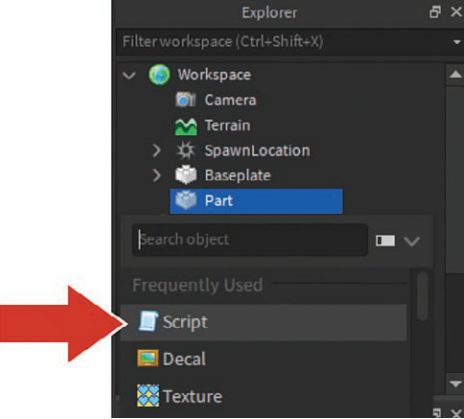
The script automatically opens. At the top, you see words familiar to any coder: "Hello world!".

Writing Some Code
Since the 1970s, "Hello World!" has been one of the first pieces of code people have learned. Here it’s being used in the print function. Functions are chunks of code that serve a specific purpose. As you learn to code, you’ll use prebuilt functions like print(), which displays messages in the Output window. You will, of course, also learn how to create functions of your own.
print() displays a string, which is a type of data usually used with letters and numbers that need to stay together. In this case, you’re printing "Hello world!":
1. Make this code your own by changing the message inside of the quotation marks to what you want for dinner tonight. Here’s an example:
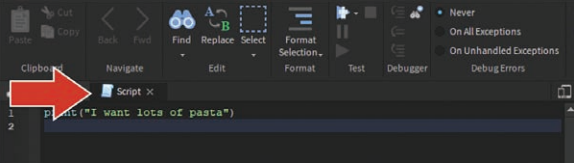
print("I want lots of pasta")
2. To test the code, in the Home tab, click Play.
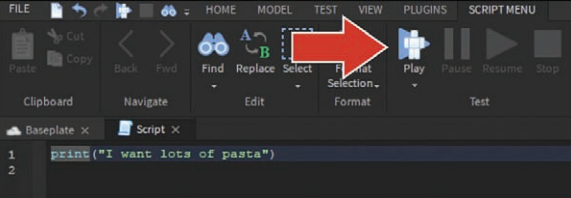
Your avatar will fall into the world, and you can see your dinner dreams displayed in the Output window, along with a note about which script that message came from.

3. To stop the playtest, click the Stop button.
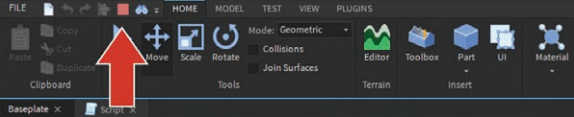
4. Return to your script by clicking on the tab above the 3D Editor.
Code an Explosion
Code of course can do more than just display messages to the output window. It can completely change how players interact with the world and make it come alive. Let’s take a slightly longer piece of code and make the block in the Baseplate template destroy anything it touches:
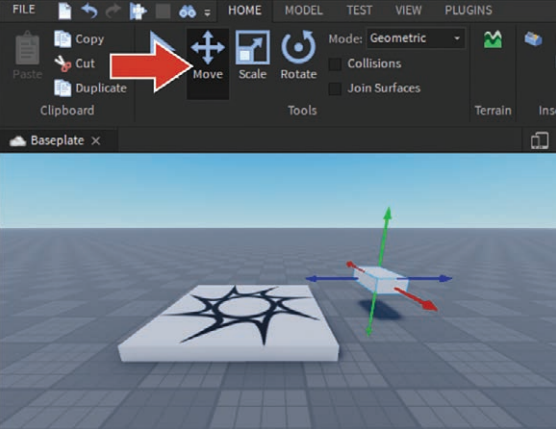
1. Use the Move tool to move the block off the ground and away from the spawn point. The code you’re going to write will destroy anything it touches, and you don’t want it to go off prematurely.
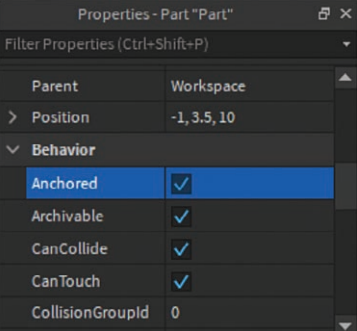
2. In the Properties window, scroll to Behavior and make sure Anchored is selected so the block doesn’t fall when you click Play.
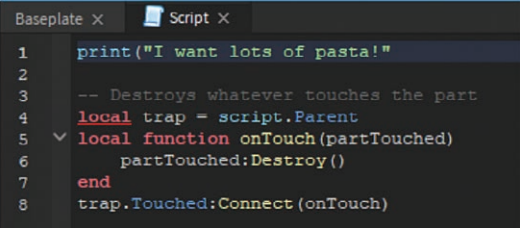
3. In the script, below the print function, add the following code:
print("I want lots of pasta!")

-- Destroys whatever touches the part
local trap = script.Parent
local function onTouch(partTouched)
    partTouched:Destroy()
end
trap.Touched:Connect(onTouch)
4. Click Play and run up and touch the part.
The result should be that your character breaks or parts of your avatar are destroyed. You may notice that this code only destroys what touches it directly, such as your feet. Try jumping on top of the block or brushing against it with just a hand. You’ll see only that part of your avatar is destroyed.
The reason is that code only does what you tell it, and you told the part to destroy only what it touches and nothing more. You have to tell it how to destroy the rest of the player. Throughout this book, you’ll learn how to write additional instructions so that the code can handle more scenarios like this one. In Hour 4 , “Parameters and Arguments,” you’ll learn how to make sure it destroys the entire player character.
Error Messages
What if the code didn’t work? The truth is, all engineers make mistakes in their code. It’s no big deal, and the editor and the output window can help you spot mistakes and fix them. Try making a couple of mistakes to learn how to better spot them later:
1. Delete the second parenthesis from the print function. A red line appears under local. In the editor, red lines indicate a problem.
2. Hover over the red line, and the editor gives you a clue about what’s gone wrong. But don’t fix the mistake quite yet.
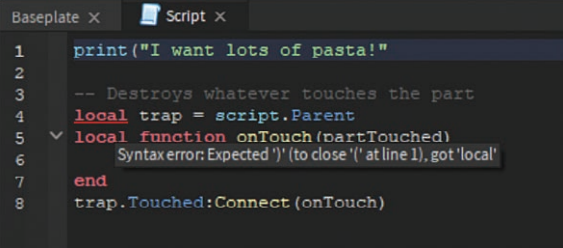
3. Click Play, which causes an error message to display in the Output window. Click the red error, and Studio takes you to where it thinks the problem is.
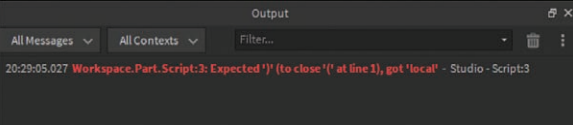
Stop the playtest and fix the issue.
Leaving Yourself Comments
In theprevious code, you may notice the sentence -- Destroys whatever touches the part. This is a comment. Comments begin with two dashes. Anything on the same line as the dashes doesn’t affect the script.
Coders use comments to leave notes to themselves and others about what the code does. Trust me: When you haven’t looked at a piece of code in months, it’s very easy to forget what it does.
The following code shows what it might look like to add a comment at the top of the script you wrote earlier in this hour:
-- What do I want for dinner?
print("I want lots of pasta!")
Summary
In just one hour, you’ve come a long way, particularly if this happened to be your first time coding or using Roblox Studio. This hour covered creating an account and opening Roblox for the first time. By using the + button, you were able to insert a script into a part, and then you added code that turned the part into a trap for anyone who happened to touch it.
In addition, you learned how to test code using the Play button and use the built-in error detection within the script editor and Output window to help you troubleshoot when something goes wrong.
Finally, you learned about comments, which are only readable in the script editor and can be used to leave notes about the purpose of the code.